
1. Before you start
EkkoLogger is a portable Windows application: extract the downloaded ZIP and run the executable. It sends ICMP echo requests (pings) and records online/offline state changes for each monitored device. IPv4 and IPv6 are supported.
- Use a Windows PC with network access to the devices you want to monitor, such as a maintenance laptop or a SCADA PC.
- Prepare a list of device IP addresses and their roles. For an initial check, use known IPv4 addresses to avoid mixing connectivity tests with name-resolution issues.
- Confirm that the devices and the network permit ICMP echo requests. A device can be operational while its firewall blocks ping.
- Check the Windows date and time so that event timestamps can be compared with PLC, HMI and network logs.
What this test tells you: a successful ping confirms an ICMP response from the destination along the tested network path. It does not confirm that the PLC program, HMI application or an industrial communication protocol is working correctly.
For this example, use five devices on your own network: two PLCs, an HMI, an EtherNet/IP flowmeter and an Ethernet-connected labeler. The addresses below are illustrative; replace them with your actual addresses.
| Device | Example address | Why monitor it? |
|---|---|---|
| PLC A | 192.168.1.101 | The controller associated with the reported interruption. |
| HMI | 192.168.1.102 | A second device to compare during the same incident. |
| PLC B | 192.168.1.137 | A reference device that normally remains reachable. |
| EtherNet/IP flowmeter | 192.168.1.110 | Compare loss of reachability with missing flow measurements in the controller. |
| Ethernet-connected labeler | 192.168.1.120 | Check whether labeling interruptions coincide with network connectivity changes. |
2. Run EkkoLogger and add your devices
- Extract the EkkoLogger ZIP into a folder where you can keep the application and its files together.
- Run the extracted executable.
- Click Add and supply the address of the first device in the add-device dialog. Repeat for the other devices.
- Select a device in the Ping Monitors list to view its details.
- Confirm that a device known to be reachable shows ONLINE before relying on the monitoring results.
If all devices appear offline, check the PC's network connection, IP configuration, routing and ICMP permissions first. Adding more targets will not resolve a problem with the monitoring PC's access to the network.
3. Choose the ping interval and timeout
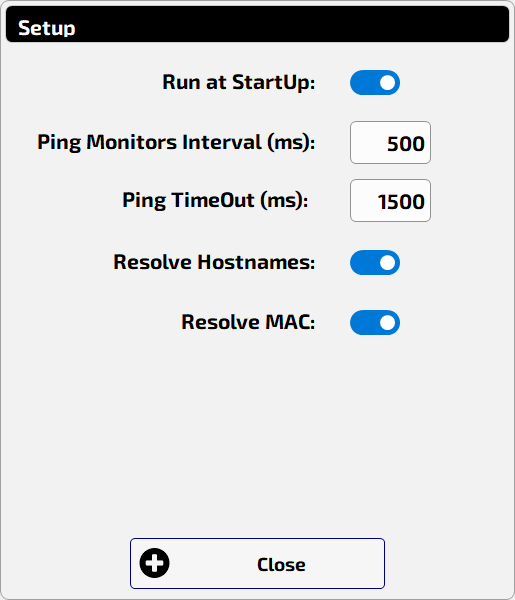
Open Setup with the gear button. Two settings determine how frequently you test reachability and how long you wait for a reply.
| Setting | Meaning | Example shown |
|---|---|---|
| Ping Monitors Interval (ms) | The configured interval between monitoring checks. A shorter interval samples connectivity more frequently and creates more traffic. | 500 ms |
| Ping TimeOut (ms) | How long a ping can wait for a reply before it times out. A value too short for the network can classify delayed responses as failures. | 1500 ms |
| Resolve Hostnames | Enables hostname resolution where available. | Enabled |
| Resolve MAC | Attempts to resolve MAC addresses where possible. A missing MAC address does not itself indicate a failed ping. | Enabled |
| Run at StartUp | Starts the application when a user signs in to Windows. | Enabled |
The screenshot values are an example, not a universal recommendation. Choose settings that fit the expected response times and the number of devices. Start with a small set of targets, observe their normal behavior and adjust the interval or timeout if needed.
EkkoLogger can minimize to the Windows system tray. Keep the application running during the observation period. Windows sleep, shutdown or a disconnected monitoring PC interrupts the measurements. With Run at StartUp enabled, monitoring starts when a user signs in to Windows, not when the computer boots.
4. Read device data, graphs and events
Data: current reachability and ping statistics
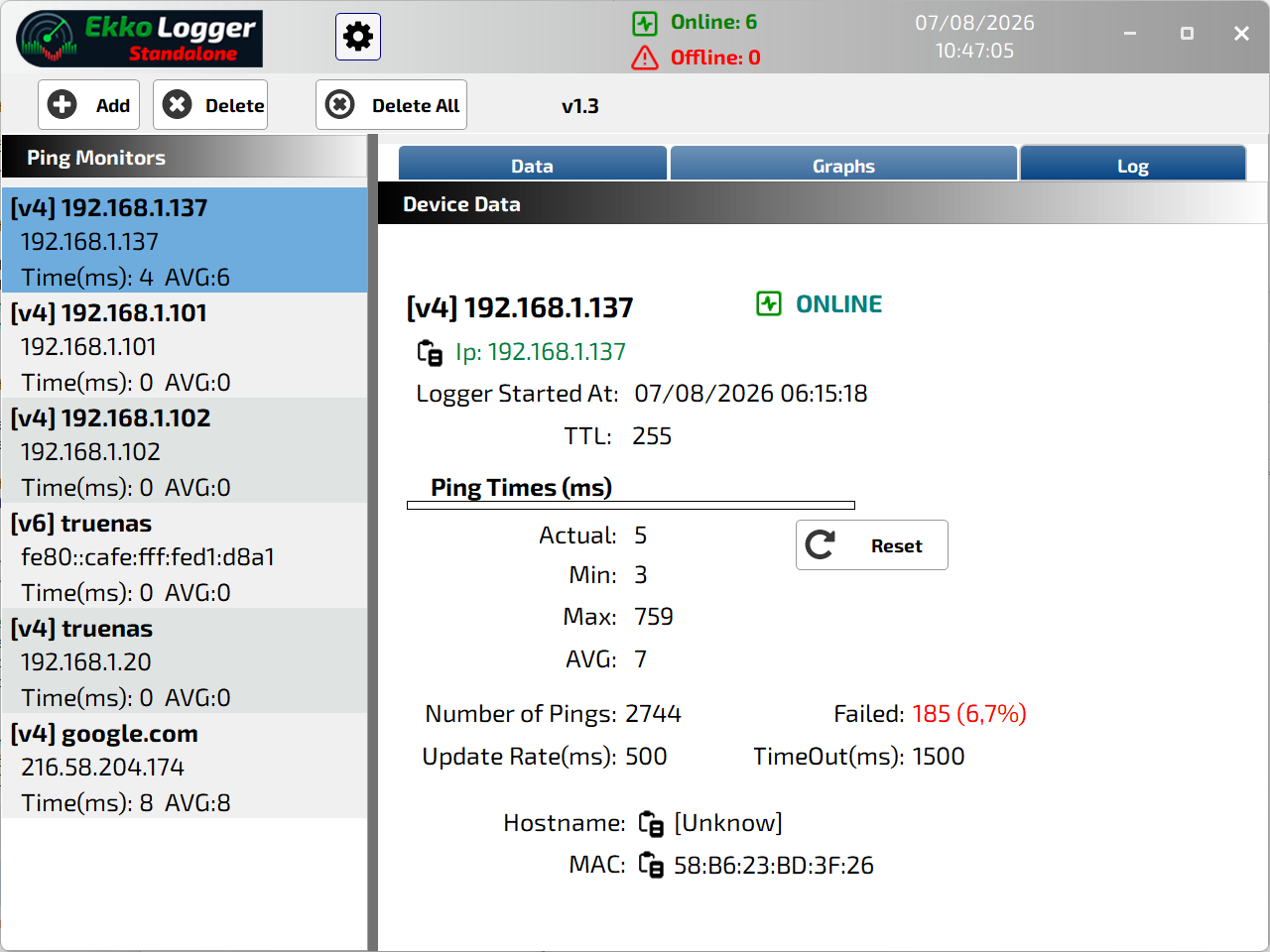
For the selected device, the Data tab shows its current online/offline status, ping times in milliseconds, minimum, maximum and average times, and the number of pings and failures. Compare these values with the device's normal baseline rather than treating a single high response time as proof of a fault.
Graphs: changes in response time
Use the Graphs tab to examine changes in ping response times. A rise in latency can help you identify a period to investigate, but ping measurements alone do not identify the underlying cause.
Log: a timeline of state changes
The Log tab shows timestamped online/offline events and the duration of the preceding state. For example, an entry stating “Device is now ONLINE. Was Offline for: 02:37” means the monitor recorded a transition back online after an offline period of two minutes and 37 seconds.
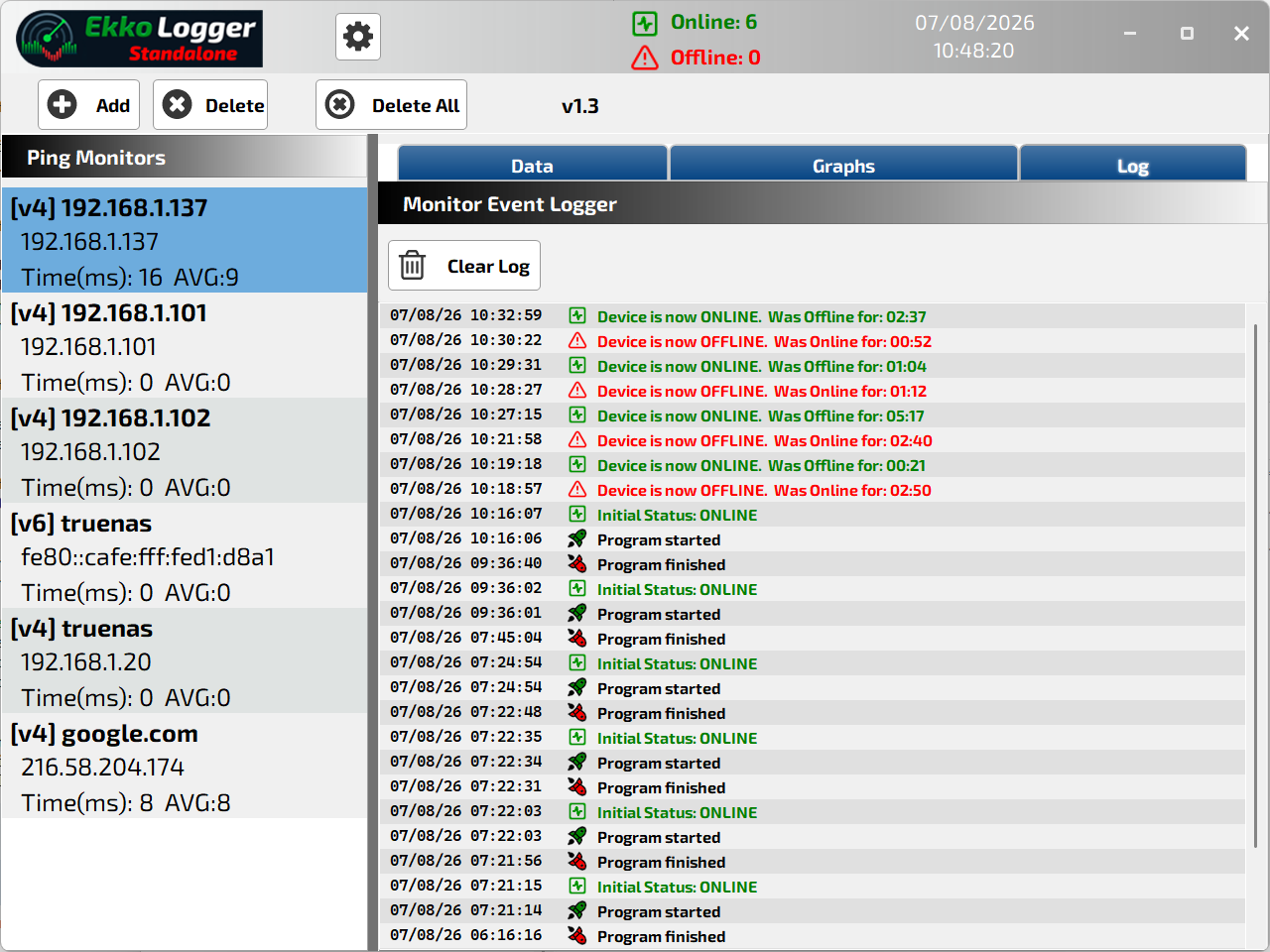
A recorded offline period reflects the monitor's checks and timeout settings. It is not an exact measurement of the moment a cable was disconnected or a device lost power. Brief interruptions between checks may go undetected.
5. Investigate an intermittent connection
Suppose an operator reports that the HMI occasionally loses contact with PLC A. Monitor PLC A, the HMI, PLC B, the flowmeter and the labeler from the same PC while the issue occurs.
- Establish a baseline. Confirm all five devices are reachable and note their normal response times.
- Keep monitoring through the incident. Record the operator's reported time and leave the application running.
- Compare each device's events. Check whether only PLC A became unreachable or whether several devices changed state together.
- Correlate with other evidence. Compare timestamps with controller diagnostics, switch port events, power interruptions and maintenance activity.
- Retest after a change. Use comparable settings and an observation period that covers the conditions in which the issue normally appears.
| Observation | Next investigation |
|---|---|
| Only PLC A stops replying | Check its power, local cable, switch port and device diagnostics. |
| Several devices stop replying together | Check their shared network path and power, and the monitoring PC's own connection. |
| Ping stays online while the HMI reports a communication failure | Investigate the application or protocol connection; ICMP reachability does not establish its health. |
These observations guide the investigation; none proves the cause on its own. Keep a record of the monitored addresses, settings, monitoring PC location and observation period alongside the events you review.
Extend the check to field instruments and machines
If flow readings disappear from the controller, compare the online/offline events for the flowmeter with the time of the missing measurements. If a labeler stops receiving jobs, compare its events with the labeling interruption. A simultaneous loss across several targets may point to a shared network path; an isolated loss narrows the investigation to that device and its connection.
An EtherNet/IP flowmeter that replies to ping can still have a failed EtherNet/IP connection or an instrument fault. Likewise, a labeler can remain reachable while its job queue, application or mechanical system has a problem. EkkoLogger checks ICMP reachability; it does not read flow values, inspect EtherNet/IP connections or verify that labels are being printed.
Common questions
Can I monitor multiple PLCs and HMIs at once?
Yes. Add each target to the monitor list. EkkoLogger uses multithreaded network operations and displays details for the device you select.
Why does a working device appear offline?
It may block ICMP, sit behind an inaccessible route, have an incorrect address or respond after the configured timeout. Compare with a Windows ping from the same PC and check the network path.
Can EkkoLogger monitor IPv6 devices?
Yes, IPv6 support is included. Check that the monitoring PC has a working IPv6 path to the target. The screenshot includes both IPv4 and IPv6 monitors.
Does ONLINE mean the PLC is operating normally?
No. ONLINE means the destination responded to the monitor's ICMP check. It does not verify the control program, process state or industrial protocol communications.
Is it a Windows service?
This guide covers the Standalone application. When Run at StartUp is enabled, EkkoLogger launches when a user signs in to Windows, rather than when the computer boots. It does not run as a Windows service and will not start before a user signs in.
Need help or want to suggest a feature? Visit the EkkoLogger feedback portal.